
Even beginners can unlock Claude Code's secret weapon: Skills (with example documents)
For the past two months, I've been pondering a question: how can we enhance AI's capabilities?
Even with CLAUDE.md, which lets it remember who I am and what I like, how can I make it learn my "capabilities"?
That's exactly what today's protagonist is about -- the Skill feature.
This thing has completely changed my view on AI collaboration. It's no longer a simple "you ask, I answer" dynamic; instead, it lets AI proactively learn and adapt to your capabilities and preferences.
It feels like you're not talking to an intern who knows a little about everything, but collaborating with a senior team member.
Although Claude Code has "Code" in its name, it's by no means just a tool for writing code. It's a true general-purpose agent that can help you handle all sorts of tedious tasks on your computer. And Skill is the "plugin pack" that infinitely expands its capabilities.
In other words, it can theoretically "abstract" each of our capabilities to a large extent, forming a portable "module." Whether you're in marketing, product, or operations, it can help you.
1. What exactly is a Skill?
Simply put, a Skill is a "capability unit" that packages professional knowledge, workflows, and best practices, allowing Claude Code to invoke them automatically.
The key difference is: you don't need to trigger it manually like you would with a slash command (/command). CC will judge from the conversation context when to use which Skill.
It's like an experienced colleague who, seeing you handle a specific task, proactively says, "I'm familiar with this, let me help."
Skills can be stored in different locations based on your needs, and their scope of effect varies:
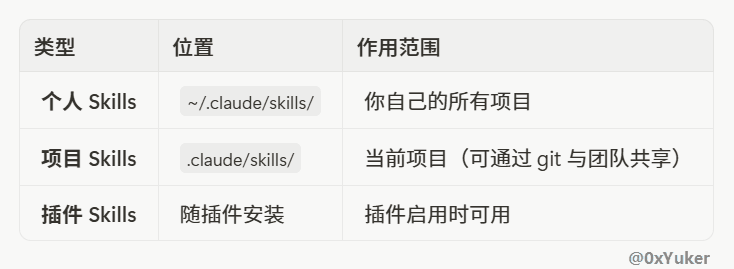
Imagine this:
2. How to "teach" your AI? -- Get started with Skill creation in 30 seconds
Sounds complicated? Quite the opposite. Creating a Skill is very simple; you only need a folder and a SKILL.md file. Let me walk you through it step by step.
Step 1: Create your Skill directory
💡 For team collaboration, project Skills are the preferred choice because they can be checked into git, and team members automatically gain new capabilities when they pull the code.
markdown# Create a personal Skill, only you can use it
mkdir -p ~/.claude/skills/yuker-skill

# Or, create a project Skill that the team can share
mkdir -p .claude/skills/yuker-company-skill
Step 2: Write the soul file SKILL.md
🫡 A complete skills example will be provided at the end of the article. If you want a framework idea first, you can scroll to the end and take a quick look.
This is the core of the Skill, consisting of two parts: YAML frontmatter (metadata) and Markdown (instructions). Don't be intimidated by these concepts; they're simple.
markdown---
name: your-skill-name
description: Briefly describe what this Skill does and when to use it
---

# Your Skill Name

## Instructions
Provide clear, step-by-step guidance for Claude.

## Examples
Show specific examples of using this Skill.
1️⃣ The art of naming
The name field is recommended to be in English and in gerund form (verb + -ing), making the capability clear at a glance.
✅ Recommended: processing-pdfs, analyzing-spreadsheets, writing-documentation
❌ Avoid: helper, utils, documents (too vague)
2️⃣ The real magic: description
The description field is the key to whether Claude Code can "intelligently" activate your Skill.
It must clearly describe, in the third person, "what it can do" and "when to use it."
A good example:
yaml---
name: Feynman-Simplifier-Skill
description: Transform any complex scientific, technical, or philosophical concept into analogies a 5-year-old can understand, and precisely pinpoint the user's knowledge gaps.
---
A bad example:
yaml---
name: 解释器1
description: This is a tool for explaining things, it can make difficult things simple.
---
The more precise the description and the more trigger keywords it contains (such as git diff, commit message), the more Claude Code "understands you."
3️⃣ You can even have Claude Code write a skill for you
You can refer to the following template for writing:
plaintextPlease generate an excellent and complete SKILL.md for me, with the function of:
- [Describe the function you want]

Requirements:
1. Must include standard YAML frontmatter
2. name should use gerund form
3. description should use third person and include trigger terms
4. Add Instructions and Examples sections
Step 3: Directory structure (⚠️ This is where most people get stuck)
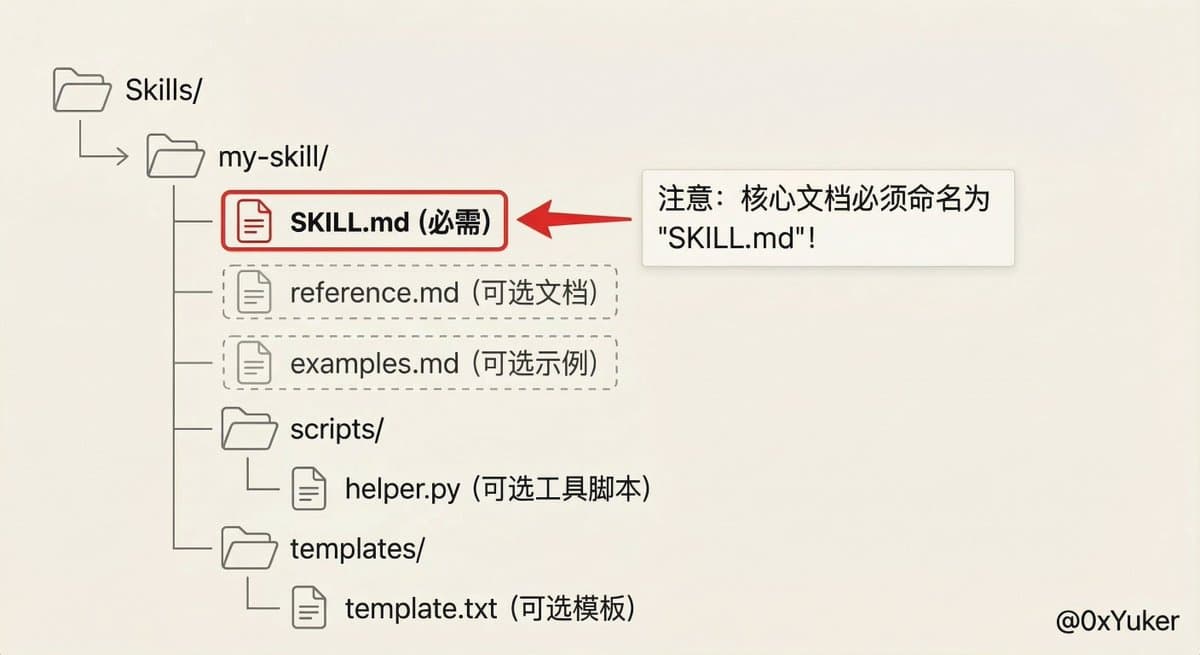
For now, you only need to focus on three parts in this diagram:
I won't cover the other files in this article; I'll leave them for the workflow chapter to keep this article easy to read.
At this point, when you enter the /skills command in Claude Code, you can clearly see which skills exist in your directory. Yes, it's that simple!
3. A real-world use case: Turning 1,000 user complaints into product insights in 40 seconds
The scariest time for product people is the first three days after a release.
App Store reviews, customer support tickets, and community complaints come flooding in like snowflakes. Previously, we'd have to assign two interns to spend a whole day copying these pieces of feedback into Excel, tagging each one, and finally tallying up "what everyone is complaining about this week" -- inefficient and prone to missing key issues.
So, we created a project Skill called feedback-analyst.
The description in SKILL.md is written very clearly:
description: Read user feedback or comment lists, perform sentiment analysis, automatically categorize them into "functional defects," "experience optimization," or "new requirements," and extract the Top 5 pain points with the highest frequency. Use when the user provides raw feedback data and requests analysis.
Now, whenever operations exports a messy feedback CSV file, you just need to say to Claude Code: "Help me see where this week's negative user reviews are mainly concentrated," and CC will automatically activate this Skill, instantly read through thousands of words, ignore meaningless emotional venting, and directly tell you: "60% of the negative reviews are because the newly launched 'dark mode' makes text hard to read; I suggest fixing that first."
The whole process is immediate. Work that used to require a full day of manual categorization now yields conclusions in the time it takes to take a sip of water, and decisions are backed by real data. This is just the tip of the iceberg. You can use it to analyze competitors' negative reviews on the App Store (to find opportunities), organize otherwise tedious user interview transcripts, or even extract key trends from dozens of pages of industry reports.
Most importantly, Skills can abstract each person's capabilities into modular components, allowing these components to circulate within the team and even externally.
🤔 This is also why some people question whether Claude is using this to extract professional knowledge from experts.
4. Conclusion: The giant whale swims silently, and all things grow
If the previous AI was an omniscient "giant whale," the Skill mechanism allows the entire ecosystem to "let all things grow."
It returns the power to define "capabilities" from AI companies to every user and every team. We are no longer just passive users, but proactive "trainers" and "enablers." We are witnessing the dawn of a new era: AI will no longer be isolated "brains," but "super partners" that can deeply integrate into our workflows and understand our unique contexts.
If you also want to experience the smartest AI on your computer and feel this "human-machine unity" synergy, you must try Claude Code and its Skill feature.
The hardest part is starting, but this article has already paved the initial path for you. Whenever you encounter repetitive, tedious work, feel free to open Claude Code, chat with it, or simply create a Skill for it.
Trust me, you'll soon find your own "Aha Moment"!
5. Appendix: A Skill framework example
name: convert-to-word
description: Convert PDF to Word
Convert PDF to Word
This skill converts PDF documents to editable Word (.docx) format.
Usage
When the user requests to convert a PDF to Word format:
bashpip install pdf2docx python-docx PyPDF2
pythonfrom pdf2docx import Converter
from pathlib import Path

def convert_pdf_to_word(pdf_path, output_path=None):
    """Convert a PDF file to Word (.docx) format."""
    pdf_file = Path(pdf_path)

    if not pdf_file.exists():
        raise FileNotFoundError(f"PDF file not found: {pdf_path}")

    if output_path is None:
        output_path = pdf_file.with_suffix('.docx')
    else:
        output_path = Path(output_path)

    print(f"Converting {pdf_file.name}...")

    converter = Converter(str(pdf_file))
    converter.convert(str(output_path))
    converter.close()

    if output_path.exists():
        file_size = output_path.stat().st_size / 1024
        print(f"✓ Conversion successful!")
        print(f"  Output: {output_path}")
        print(f"  Size: {file_size:.2f} KB")
        return str(output_path)
    else:
        raise RuntimeError("Conversion failed")

# Example usage:
# convert_pdf_to_word("document.pdf")
# convert_pdf_to_word("report.pdf", "output/report.docx")
Features
Limitations
```