
10 Internal Tips from the Claude Code Team, but You Don't Have to Learn Them All
10 internal tips shared by the Claude Code team, already shared by many, and I'll interpret most of them based on my own experience.
The most important sentence is: "There is no single right way to use it; everyone's setup is different."
I've layered them by difficulty, adding my own understanding and background information.
[1] Parallel Running: The team's #1 efficiency boost, but you don't have to learn it
This is the team's most recommended tip, but not necessarily the one you should learn.
The approach is to use git worktrees to check out 3-5 working directories simultaneously, each running a separate Claude Code session. For example, directory A is refactoring a module, directory B is writing tests, and directory C is updating docs. Three things progress in parallel.
What is Git worktree? It lets you open working directories for multiple branches in the same repository at once, without switching back and forth. The command is roughly git worktree add ../feature-a feature-a.
Related docs: https://code.claude.com/docs/en/common-workflows#run-parallel-claude-code-sessions-with-git-worktrees
Some team members set up shell shortcuts (za, zb, zc) for worktree directories for one-click navigation. Others keep a dedicated "analysis-only" worktree just for looking at logs and running queries, not writing code.
Boris himself uses multiple git checkouts rather than worktrees, but most of the team prefers worktrees. The Claude Desktop app has added native support for this.
Why do they rank this first? Because it changes the entire work pattern. From "doing one thing at a time" to "advancing multiple things simultaneously." The bottleneck shifts from "waiting for AI generation" to "how I allocate my attention."
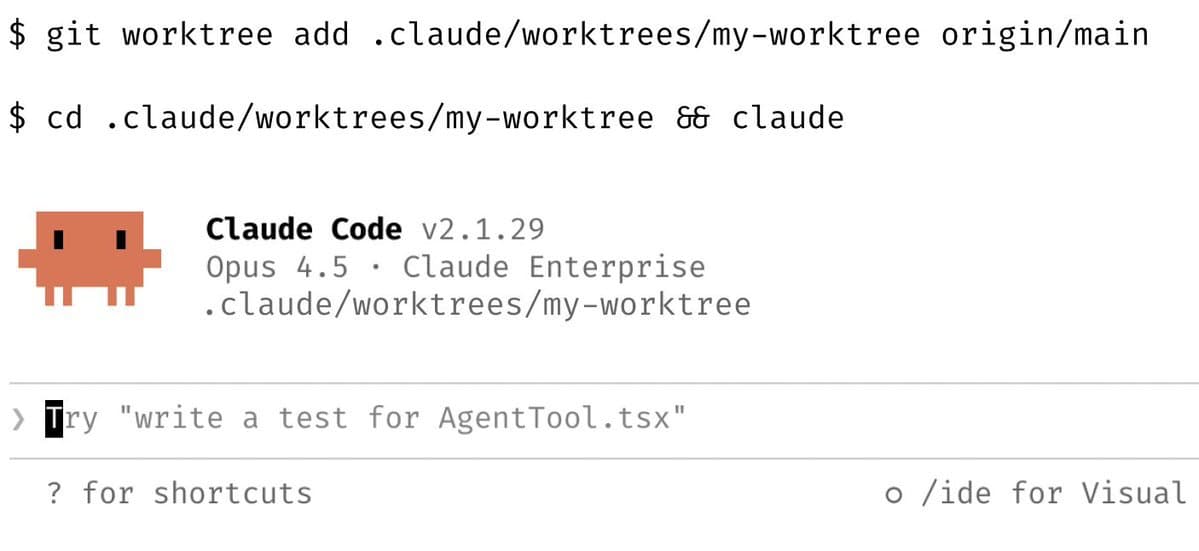
This approach isn't necessarily for everyone.
First, git worktree operations are a bit cumbersome (you can have Claude Code do it for you). I personally prefer the way Peter, the author of ClawdBot (an open-source Claude client), does it—splitting into several directories, simpler than worktrees:
He simply checks out several copies of the repo: clawbot-1, clawbot-2, clawbot-3, clawbot-4, clawbot-5. Use whichever is free, then test, push to main, and sync.
Then, parallel tasks force you to frequently switch mental threads, which is quite troublesome for programming, a task that requires attention. It takes practice.
I estimate their team has many simple bug-fix tasks; once these are clearly described, you can basically copy-paste and wait.
For multiple complex tasks in parallel, I wouldn't recommend it, though of course, there's no harm in trying.
[2] Plan Mode: Plan first for complex tasks
The value of Plan Mode isn't just the "planning" itself, but forcing you to think clearly about what you want before starting, and ensuring Claude understands what you want.
Often, when we want to do something, we only have a vague idea at first and don't know the optimal solution. In such cases, jumping straight into coding isn't necessarily good. If you discuss it repeatedly through plan mode, it might help you sort things out. Sometimes Claude Code can even offer unexpected suggestions.
Often, when Claude writes something wrong, it's not because it can't do it, but because it started coding without clearly understanding what you really want. Through Plan Mode's back-and-forth confirmation, you can ensure it understands your intent.
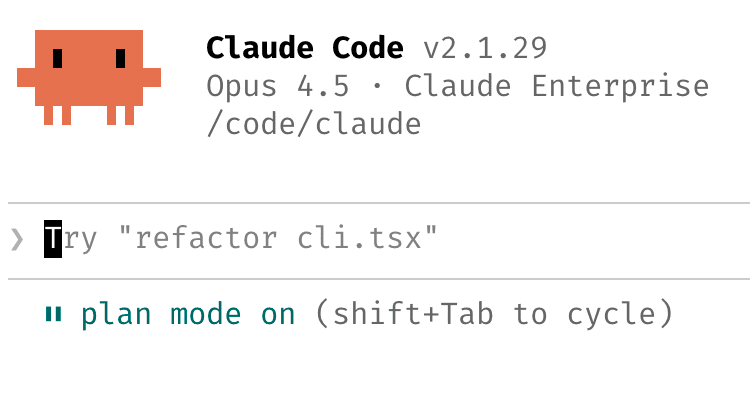
Basic principle: For complex tasks, first use Plan Mode to discuss the approach with Claude. Iterate until you're satisfied with the plan, then switch to auto-edit mode for Claude to execute. A good plan usually means Claude can get it right in one go, without back-and-forth changes.
One team member goes further: have one Claude write the plan, and another Claude review it as a "senior engineer." Let AI review AI.
There's also an important addition: once things go off track, immediately return to Plan Mode to re-plan. Don't push through, and don't let Claude go further in the wrong direction. Some even switch to Plan Mode during verification steps, not just in the "doing" phase.
[3] Invest in your CLAUDE.md
This might be the highest value-for-money tip.
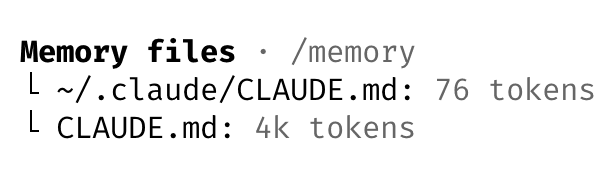
CLAUDE.md is a file placed in the project root that Claude Code reads every time it starts. You can write code conventions, design principles, PR templates, common mistake reminders—anything you want Claude to remember.
The key is how to maintain this file. The team's approach: after correcting Claude's mistakes, have it update CLAUDE.md itself.
The specific prompt could be: "Update your CLAUDE.md so you don't make that mistake again."
Boris's exact words: "Claude is eerily good at writing rules for itself."
One engineer on the team is more systematic: he maintains a notes directory for each project/task, updating it after each PR. Then he points to these notes in CLAUDE.md, essentially building a continuously updated knowledge base for Claude.
This idea is similar to the Skills iteration approach I often mention. Usually, rules aren't perfect at first; each time you encounter a problem, letting the Agent improve itself based on the current context works best. On one hand, you don't need to describe the problem from scratch; on the other, Agents are good at summarizing.
As for maintaining a notes directory, it's a good practice for accumulating experience. You don't need to write it yourself; you can create a Skill that has Claude Code review the current session and distill it into notes. You could even hook it up to run automatically at the end of each session. However, I personally don't recommend this; too much meaningless information isn't necessarily good.
The core of this tip is turning human brain experience into systematic knowledge. The longer it goes, the more complete CLAUDE.md becomes, the fewer mistakes Claude makes, and the less you need to correct. It's compound interest.
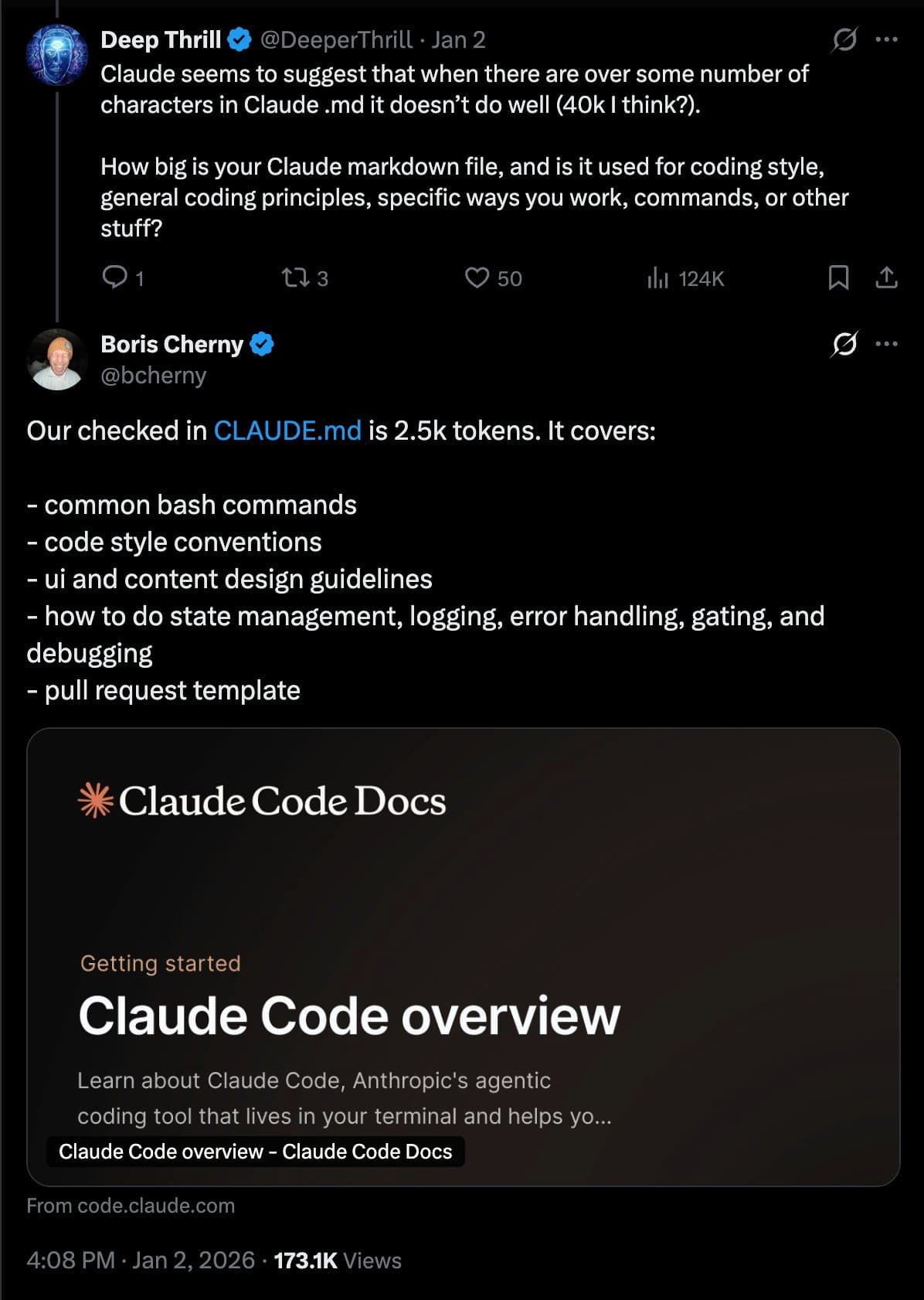
Here's a note of caution: it's not recommended to put too much content in CLAUDE.md; it backfires. Only include the most important content that AI hasn't been trained on. For more content, use file links and read on demand.
Many people put design patterns, conventions, best practices, etc., in there. Not to mention these are already trained into AI; at most, you just need to name them. Even if you need them, it's not every time. Better to include a link or move to Skills for on-demand loading.
In the official Claude Code project, the CLAUDE.md file is only about 2.5k tokens:
[4] Create Custom Skills
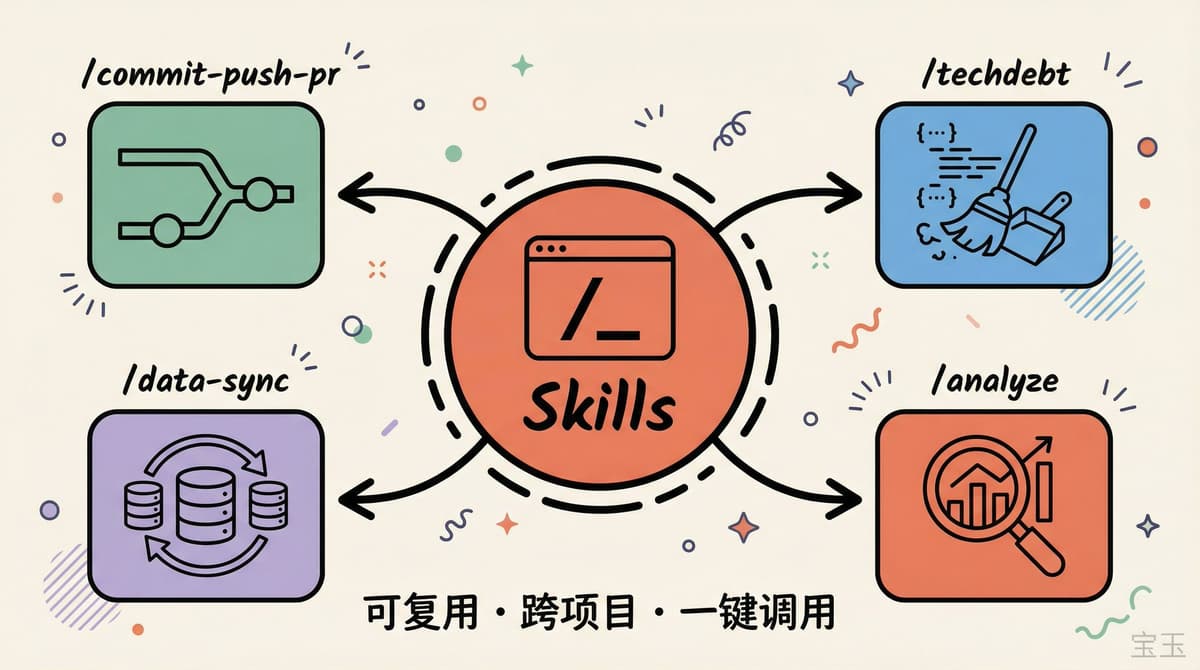
If you do something more than twice a day, it's worth turning it into a skill or slash command.
A Skill is a set of reusable instructions placed in the project, invoked with a slash command. For example, /commit-push-pr can complete the entire flow of committing, pushing, and creating a PR in one go. Boris says he uses this command dozens of times a day.
The team shared a few skills they use:
Someone also built a slash command that syncs Slack messages from the past 7 days, Google Drive docs, Asana tasks, and GitHub activity into one context, essentially a one-click "what happened this week" overview.
More advanced use: someone built a "data analyst engineer" type agent using skills that can automatically write dbt models, review code, and test changes in a dev environment.
The benefit of Skills is that they can be committed to git and reused across projects. The automation you build in one project can be carried to the next.
Skill docs: https://code.claude.com/docs/en/skills#extend-claude-with-skills
[5] Let Claude Fix Bugs Itself
The team's experience: most bugs, Claude can fix on its own.
A common scenario: Enable Slack MCP, paste the bug report post from Slack directly to Claude, and just say one word: "fix." No need to explain context or manually locate the issue. Claude will look at the code, understand the problem, and fix it.
Another scenario: CI tests fail. Just tell Claude: "Go fix the failing CI tests." Don't micromanage how; let it look at logs, find the cause, and change the code.
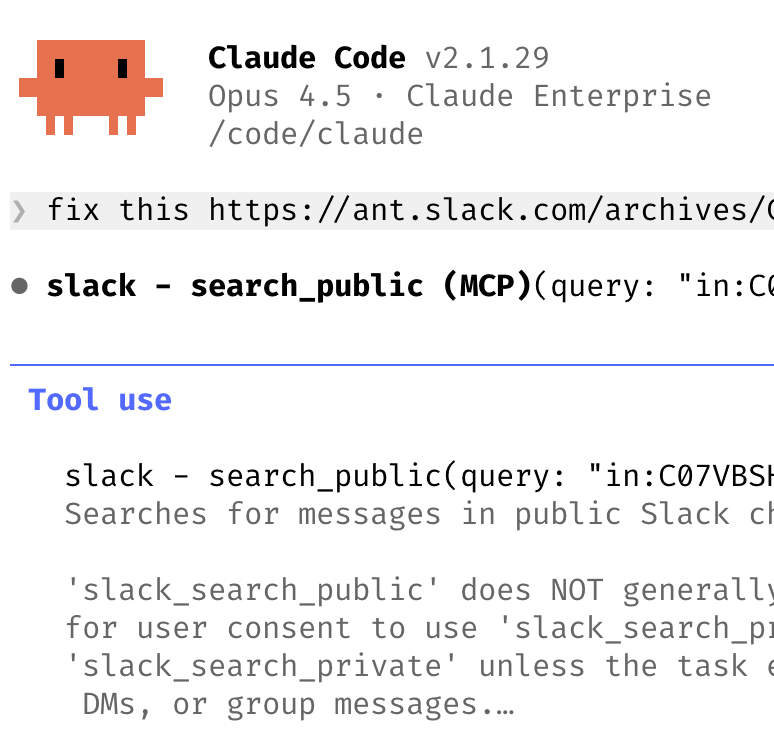
More complex scenarios: When a distributed system goes wrong, point docker logs to Claude and let it help you troubleshoot. Boris says Claude is "surprisingly capable" in this regard.
What Boris didn't say is that when describing a bug, you need to be clear:
From another perspective, assume it's a programmer; after reading your bug description, they should understand what's going on. With this basic information, AI can have enough context to locate and verify the problem.
The core of this technique is to give Claude enough context and permissions, then trust it. No need to guide it step by step; let it close the loop on its own.
So you see, this is an important reason why they can multitask — many bugs can be fixed by Claude Code itself.
[6] Improve Your Prompting Skills
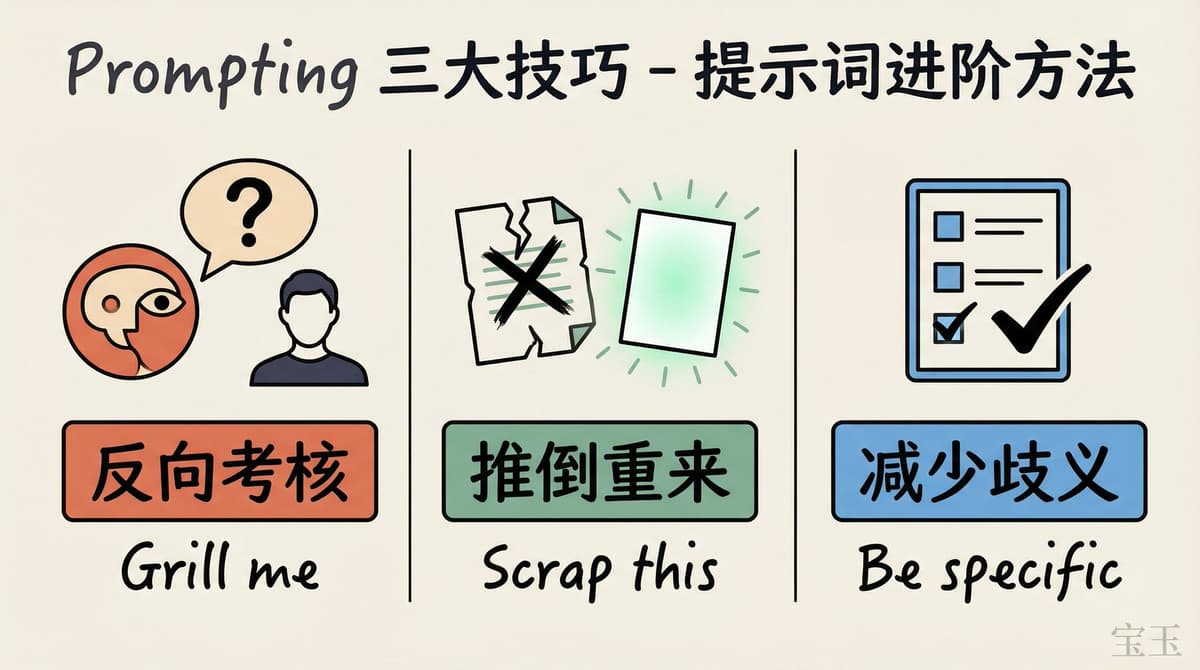
This section has a few specific tricks.
First Trick: Let Claude Quiz You
Prompt example: "Grill me on these changes and don't make a PR until I pass your test."
Or: "Prove to me this works." Have Claude compare the behavior differences between the main branch and your feature branch.
This essentially turns Claude from an "executor" into a "reviewer." Let it review you instead.
Second Trick: Start Over
When Claude's solution isn't good enough, don't patch it. Directly say: "Knowing everything you know now, scrap this and implement the elegant solution."
I usually use git to roll back the code to before the changes, then open a new session, adjust the prompt, and start over. Continuing in the current session might let previous error messages interfere with Claude's judgment.
Third Trick: Reduce Ambiguity
When assigning tasks, the more detailed the spec, the better. The more specific you are, the more accurate Claude's output. This sounds obvious, but many people (including me) still habitually write vague requirements and then complain that AI doesn't understand.
In fact, people are lazy; if they can say it in one sentence, they won't bother with a second. Using Plan mode is relatively better — you can tell whether it understood or not.
[7] Terminal and Environment Configuration
Many team members use the Ghostty terminal because it has synchronous rendering, 24-bit true color, and comprehensive Unicode support. These are important when running multiple Claude sessions simultaneously.
Another practical tip: Use /statusline to customize the status bar, always showing current context usage and git branch. This way, you can see the status of each session at a glance.
Some people also use tmux to manage multiple sessions, coloring and naming each tab, with one tab corresponding to one task or worktree.
Optimize your terminal setup documentation: https://code.claude.com/docs/en/terminal-config
One last easily overlooked tip: Use voice input.
Boris says your speaking speed is three times your typing speed. More importantly, when using voice, you naturally speak in more detail, making the prompt quality higher.
On macOS, press the fn key twice to start voice input. Give it a try?
[8] Using Subagents
This is an advanced technique, powerful when used well.
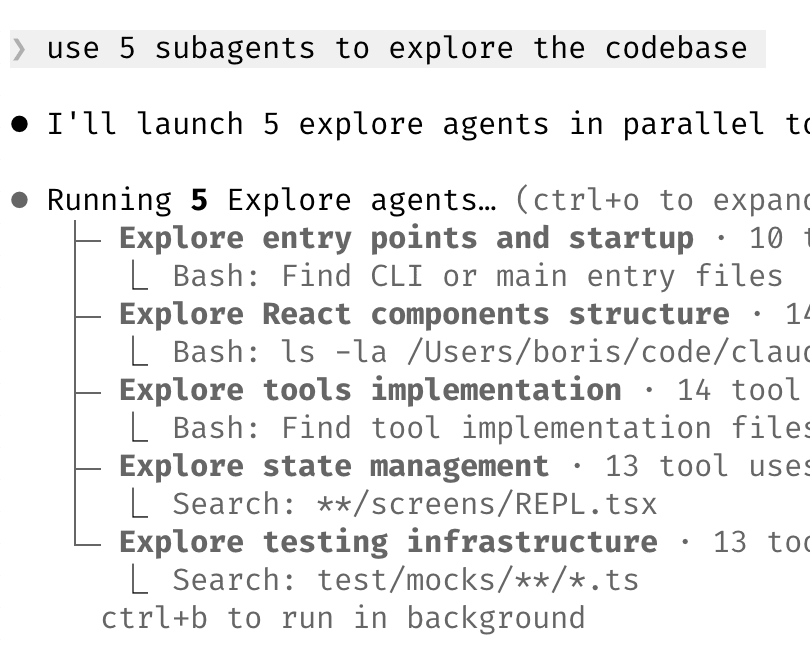
The simplest usage: Add "use subagents" after any request. Claude will automatically split the task among multiple subagents for parallel processing, essentially letting it "open more threads" to solve the problem.
Another usage is to use subagents to keep the main session's context clean. Delegate independent subtasks to subagents, while the main session handles overall coordination. This way, the main session's context window won't be filled with intermediate processes.
Subagents can parallelize tasks, saving a lot of time. For example, when I generated illustrations for an article, I had it run 4 subagents, passing the prompt file path to each subagent. However, in practice, stability is still lacking; subagents often crash. I look forward to improvements in future versions.
A more advanced play: Use hooks to route permission requests to Opus 4.5 (Anthropic's strongest model), letting it decide which operations are safe for automatic approval and which require manual confirmation. This adds a "security reviewer" to Claude.
Reference documentation: https://code.claude.com/docs/en/hooks#permissionrequest
[9] Data Analysis with Claude Code
This usage might surprise many people.
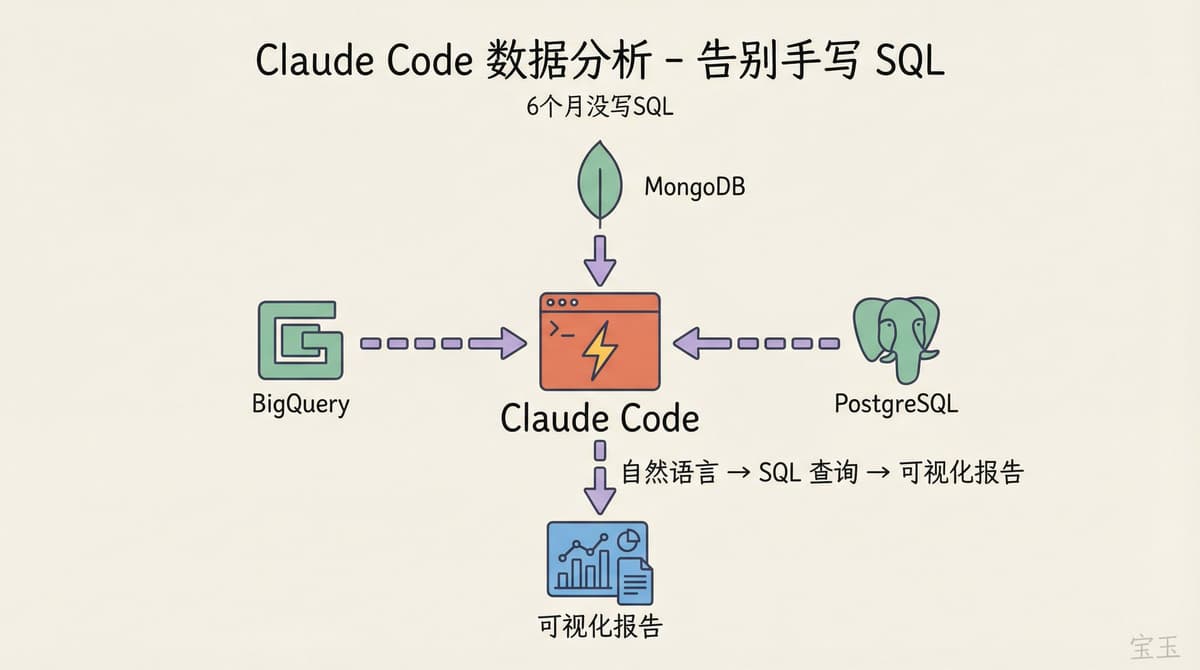
The Anthropic team wrapped BigQuery usage into a skill, allowing everyone to query data directly using the bq command line in Claude Code. Boris says he hasn't written a single line of SQL in six months.
This isn't limited to BigQuery. Any database with CLI, MCP, or API can be used this way. PostgreSQL, MySQL, MongoDB — all can let Claude write queries, run analyses, and generate reports.
This might be even more valuable for non-engineers. Data scientists on the team are now using Claude Code to write queries and create visualizations. The boundaries of tools are blurring.
[10] Learning with Claude Code
This last tip is about how to use Claude Code to learn new things.
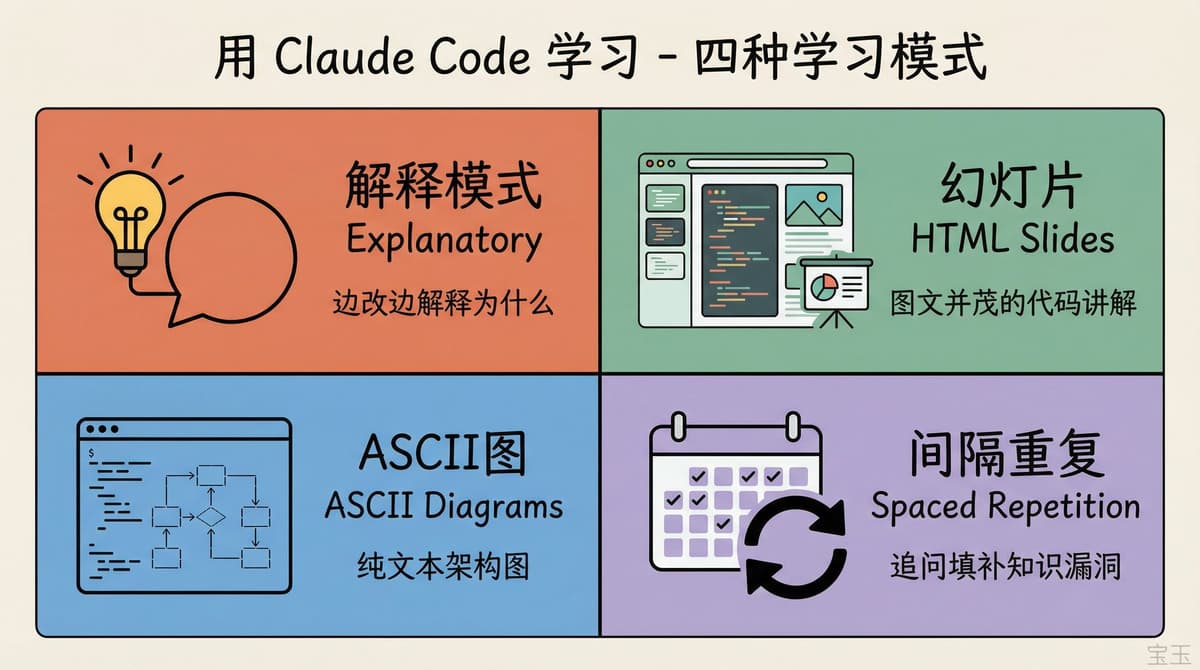
First, enable the "Explanatory" or "Learning" output style in /config. This way, Claude will explain "why" it made changes when modifying code, not just make the changes and stop.
Second usage: Have Claude generate HTML slides to explain unfamiliar code. Boris says the effect is surprisingly good. You can view a code explanation with images and text directly in your browser.
Third usage: Have Claude draw ASCII diagrams to explain protocols, architectures, and data flows. Plain text diagrams are unexpectedly helpful for understanding complex systems.
Last advanced play: Someone built a "spaced repetition" skill. First, you explain your understanding of a concept to Claude; Claude will ask follow-up questions to fill your knowledge gaps, then save the result. When reviewing next time, you can pull it up again.
Boris emphasized at the beginning of his tweet that "there is no single correct way to use it" — this is the most important point. Even within his team, usage varies. These tips are starting points, not endpoints. Find what works for you, rather than blindly copying others' setups.